Wednesday, February 27, 2008

Thing #11 Wikis

So, what's a wiki?

A wiki is a collaborative website and authoring tool that allows users to easily add, remove and edit content.
Wikipedia, the online open-community encyclopedia, is the largest and perhaps the most well known of these knowledge sharing tools. With the benefits that wikis provide, the use and popularity of these tools is exploding.

Anyone (registered or unregistered, if unrestricted) can add, edit or delete content. Tracking tools within wikis allow you to easily keep up on what has been changed and by whom. Earlier versions of a page can be viewed and reinstated when needed. Users do not need to know HTML in order to apply styles to text or add and edit content. In most cases, simple syntax structure is used.

As the use of wikis has grown over the last few years, libraries all over the country have begun to use them to collaborate and share knowledge. Among their applications are subject guide wikis, book review wikis, ALA conference wikis, and even library best practices wikis.

Discovery Resources:

Use these resources to learn more about wikis:

Discovery Exercise:

So what is in a wiki? For this discovery exercise, you are asked to take a look at some wikis and blog about your findings. Here are a few library-related examples to investigate, but feel free to search for others that interest you as well:

Homework Activity:

  • Practice in the Sandbox section of the Media Clerks Manual Wiki. You can try your hand at adding different kinds of content. Don't worry, we can remove anything -- just practice and, as the name implies, play in the sandbox!
  • Add to your assigned section of the Media Clerks Manual Wiki. This wiki will be used to develop a job manual of best practices for Media Clerks of the SVVSD. (This collaborative wiki will be presented as our final project for our PST credit). You will receive your invitation by email before class and we will draw for sections in class.
  • Add to, or edit one of the other sections of the wiki.
  • Remember, you can add links and support documents. Remember to cite your sources if you use outside information.
  • Reflect about your findings about wikis in your blog. What did you find interesting about them? What applications within libraries might work well with a wiki? Is this something you may use personally?
Optional Exercise:

Now that you know what they are, create your own wiki, on any topic, using one of the following tools: (link your wiki to your blog)

Photo Attribution: http://flickr.com/photos/jaaronfarr/1056922912/

Wednesday, February 20, 2008

Thing # 10 -- Working with Photos

This week, we will learn to edit our photos to get them to a size, format, shape, or transition whereby it can be used for blogging, image generating, photosharing, or other online use. You may want or need to resize photos for use in brochures, documents, presentations, and other offline projects. These tools are perfect for editing your photos for every need. The tools we will explore are all online and either have a free version or have no limitations for use.

We have explored Flickr and have found that we can store, edit, catagorize, tag, search, and use photos from many different users. You can apply safety features or search for copyright-friendly images with a Creative Commons license. Read on to find out about more resources for editing your photos online.

Discovery Resources:

Stock.xchng and morgueFile are two sites where you can find a wide variety of stock photos where consent for public use has already been granted.

Here are some more photosharing sites if you want to keep exploring. These are broadly similar to Flickr, but each has its own individual twist and may better meet your needs:

Discovery Activities:

For this hands-on activity, you will need to bring these items to class:

  • your digital camera -- be sure to bring the appropriate USB cords, card readers, or other items needed to upload your photos (make sure they work on the Citrix environment) (or)
  • a CD with your saved photos (or)
  • a flashdrive with your saved photos (or)
  • have your photos pre-loaded onto your Flickr account

Explore these online photo editing sites:

Many of these sites give you the capability to morph, stretch, colorize, add text balloons, and create works of art with your photos.

Work with some of your photos and use one or two in your blog. You can save the edited image on your flashdrive, or upload it to your Flickr account -- then you can use it anytime, from any computer, and use it directly in your blog. Write a blog post for Thing #10 with your thoughts on the availability of online photo editors and how you might be able to use them in the library.

If you want more:

If you want more capabilities, try some of the open-source photo editing software now available. Full-capability photo editing software has been expensive to purchase; open-source choices now bring these capabilites to you at little or no cost -- yet give you full, robust editing capabilities once only found in retail programs. You may need to download software for these applications, but they may be a great option for your use at home. Explore some of the options:

Thing #9 Technology

Create a blog post about anything technology related. Yes, it can be anything that relates to technology! You just need to share a few thoughts, share some links, and post a photo for us to learn more about your topic. Talk about anything you think is relevant to this class or about using technology in the library. Here's your chance to really participate in the class and share with your colleagues.

Be sure to keep commenting on everyone's blogs. That's what online communities are all about - connecting and communication. CHEER and otherwise encourage your Library Learning 2.0 colleagues!

Remember to post your reflections on each new Thing each week so your classmates can comment, share, and learn.

Wednesday, February 13, 2008

Thing 8 -- Library Thing

Okay, librarians and book lovers, here's your new favorite tool! Do you like cataloging, organizing, exploring, and discussing books? Or do you enjoy finding lost and forgotten gems on the shelf to read? Then LibraryThing may be just the tool for you.

Developed for booklovers, this online tool not only allows you to easily create an online catalog of your own books, but it also connects you to other people who have similar libraries and reading tastes. Add a book to your catalog by just entering the title (or use the ISBN, LLC, or Author).

There are lots of ways to use LibraryThing. You can view your books on a virtual shelf, add a widget (see sidebar for sample) to display titles that are in your catalog, or install a LT Search box on your blog. So why not join the ranks and create your own library online. With over 353,743* registered members (BTW: LibraryThing also has group forum for librarians), over 23,548,895 cataloged books*, over 30,548,961 tags*, and 3,612,180 ratings*, you're bound to discover something new. A bibliophile's dream!
* As of the date of this post.

When you sign up for the free account, you can catalog up to 200 of your books, find other people who share your bookshelf, get suggested reads based on your bookshelf, and even go to the Unsuggester. This will give you books that you probably won't like based on your bookshelf.

Discovery Resources:

Discovery Activities:

  • Explore LibraryThing and create a personal account.

  • Add several of your books to your library.

  • Blog about your findings; how can you use Library thing personally? ...in the library?

  • Be sure to to link to your LibraryThing catalog!

  • If you are up for the challenge, add a Library Thing chiclet (see the icon at the beginning of this post) or add the widget to your sidebar.

If you want more (very cool book-related tools):

  • Shelfari - Shelfari is a social networking site for book lovers. Using Shelfari, you can create a personal shelf of your books, see what your friends are reading, get and give recommendations for what to read next, create book lists, and even share your opinion on a book with friends or the Shelfari community.

  • Anobii - is a social networking site targeted to worldwide booklovers. The idea behind aNobii is simple: create an online platform for avid-readers to share reviews, recommendations, and most important of all, find other similar-taste booklovers.

  • Gurulib - GuruLib is a free web service to organize your home library. Catalog your books, DVDs, music CDs, games and software online using a book shelf metaphor.

  • Bookswellread - is designed for all readers in mind -- readers of all types of books, of all ages, interests and backgrounds. It's a place for you to keep an online book journal, learn about books and connect with a community of readers.
If you explored any of these social-networking book sites, tell us about it in your blog.

Thing 7 -- Tagging & Social Bookmarking

Tagging is an open and informal method of categorizing that allows users to associate keywords with online content (webpages, pictures & posts). Unlike library subject cataloging, which follows a strict set of guidelines (i.e.Library of Congress subject headings), tagging is completely unstructured and freeform, allowing users to create connections between data anyway they want.

In the past few weeks, we’ve already explored a few sites –
Flicker and Technorati to name two --that allow users to take advantage of tagging. This week, as we explore tagging, we will also take a look at a popular social bookmarking site called Del.icio.us (typed in as http://del.icio.us/).

Del.icio.us is a social bookmarking manager which allows you to bookmark a web page and add tags to categorize your bookmarks. Many users find that the real power of Del.icio.us is in the social networking aspect, which allows you to see how other users have tagged similar links and also discover other websites that may be of interest to you. You can think of it as sharing another users filing cabinet, but with this powerful bookmarking tool each user's filing cabinet helps to build an expansive knowledge network. For this discovery exercise, you are asked to take a look at Del.icio.us and learn about this popular bookmarking tool.

Discovery Resources:


Watch this video Information R/evolution from Michael Wesch, Assistant Professor of Cultural Anthropology at the Kansas State University and the students participating in his Digital Ethnography group. "This video explores the changes in the way we find, store, create, critique, and share information. This video was created as a conversation starter, and works especially well when brainstorming with people about the near future and the skills needed in order to harness, evaluate, and create information effectively."

Watch the Common Craft Video Social Bookmarking in Plain English:


Take a look around Del.icio.us using the MediaClerks account that was created for the Media Clerks Forum and this class.

Note: In this account you will find lots of resources that have been highlighted or used throughout the course of the Learning 2.0 program.

Explore the site options and try clicking on a bookmark that has also been bookmarked by a lot of other users. Can you see the comments they added about this bookmark or the tags that they used to categorize this reference?

Discovery Activities:

  • Create a Del.icio.us account for yourself and discover how this useful bookmarking tool can replace your traditional browser bookmark list. Add some booksmarks and try tagging them for easy indexing -- add an explanation to your entry so you will know what the site is about. Explore some of the tools available for Del.icio.us -- try adding a network badge to your blog.
  • Create a blog post about your experience and thoughts about this tool. What kind of potential do you think this tool has? How could you use this in your own personal productivity? Could this be used in the library?
  • Remember to keep commenting on your classmates blogs, pick up ideas, and share ideas.

If you want more:

Check out thise other social bookmarking sites:

  • StumbleUpon.com - Lets you “channel surf” the Internet and review sites; it learns what you like and recommends more of the same.
  • Ma.gnolia.com - Discuss all the saved bookmarks in groups, see what the Featured Linker is all about, join discussions in the Hot Group.
  • Furl.net - Not only can you do the standard bookmarking and sharing, you can save archived versions of a webpage and even export all your saved pages to a ZIP file.
  • Digg.com - Synonymous with social bookmarking: you Digg a story, others Digg it, the more popular it gets the better chance it has of hitting the first page.

Wednesday, January 30, 2008

Thing 6 -- Image Generators

Image generators allow you to easily manipulate images and graphics to create fun images like the ones you see on this post.

For this discovery exercise, we will just have fun. Find a few fun image or text generators to play around with and write a post in your blog about some of your favorites and display the results. Often adding the image you mocked up to your blog is as simple as copying and pasting code that the page provides. If not, you may just need to right click on the image and then save it to your hard drive before using Blogger’s image button (see Thing 5 for directions) to add it to your post. If you’re having difficulty getting your image added to a post in your blog, ask a classmate for help.

ImageChef.com - Custom comment codes for MySpace, Hi5, Friendster and more ImageChef.com - Custom comment codes for MySpace, Hi5, Friendster and more

Discovery Resources:

Homework Exercise:

  • Play around with some image generators and find a few that you like.
  • Post the results of your discovery process in your blog. Let's see your images!
  • Note: Be sure to include a link to the image generator itself, so other participants can discover it too.
  • So take some time and have fun with this exercise.
Hint for adding (embedding) "code" to your blog post:

Here's some instructions for SignGenerator.org. This will work for most image generator sites.

  • Generate your image and the scroll down to the "Get HTML" link.
  • When the page displays, find the embed code and put your cursor on it.
  • Use (CTRL) A to select all the code
  • Use (CTRL) C to copy the code (or however you usually do it)
  • Go to your blog and create a new post.
  • On the "Edit Html" tab, paste in the code.

[Note: Please remember to include Web tool and THING# in your heading posts.]

Thing 5 -- Discover Flickr

Explore Flickr and learn about this popular image hosting site. Photo sharing websites have been around since the 90s, but it took a small startup site called Flickr (and now owned by Yahoo) to catapult the idea of “sharing” into a full blown online community. Flickr uses "tags" or what we would call keywords to help identify and search for photos.

For this discovery exercise, you are asked to take a good look at Flickr and discover what this site has to offer. Find out how tags work, what groups are, and all the neat things that people and other libraries are doing with Flickr.

Discovery Resources:

  • Watch the CommonCraft video, Online Photo Sharing in Plain English

Homework Activities:

  • Take a good look around Flickr and discover an interesting image that you want to blog about. Be sure to include either a link to the image or if you create a Flickr account, you can use Flickr's blogging tool to add the image in your post. Another option you have for including images in your post is to use Blogger's photo upload tool. (see the extra activity below)
  • Create a free account in Flickr (you can use your Yahoo mail ID that you set up to make your avatar!) and use your digital camera to capture a few pictures of something in your library or other things you like to do. Upload these to your Flickr account and tag at least one of the images MediaClerks23Things and mark it public. Then create a post in your blog about your photo and experience. Be sure to include the image in your post.

Learn to add photos to your blog:

  • GET AN IMAGE - Use your own digital camera or check one out from your library. Take some library photos or any other photos that would work on your blog. Upload the images to your flashdrive or a CD (be sure they are in *.jpg format). If you don’t know how to do that, bring your camera (with the photos you have taken) to class.
  • POST THE IMAGE TO YOUR BLOG - Go to your blog and start a new post.
  • Find the "Add Image" icon and click on it.
  • Select BROWSE and browse to the directory with your image. Change the size and position if you like.
  • Select UPLOAD.
  • When the image is uploaded, it will appear at the top of your post. Drag and drop it wherever you want it.
  • When you are ready to publish, select "Publish Post".
  • Or...explore the very cool feature in Flickr to post to your blog directly from a photo in Flickr. Here's instructions for Flickr's blogging features.

More Flickr Fun:

Like many web 2.0 sites, Flickr has encouraged other people to build their own online applications using images found on the site. Through the use of APIs (application programming interfaces), many people have created third party tools and mashups* that use Flickr images. Here is just a sampling of a few …

Discovery Exercise 5 1/2:

Explore some of the fun Flickr mashups* and 3rd party tools that are out there. Create a mashup* in BigHugeLabs, insert it in your blog, and post about one that intrigues you.

* Mashup Note: Wikipedia offers some great articles that explain mashups. Basically they are hybrid web applications that take features from one application (like Flickr) and mash it up with another (like a map). In this example, you get Mappr (http://mappr.com/).

**: A quick word about photo posting etiquette and responsibility - When posting identifiable photos of other people (especially minors) is it advisable to get the person's permission before posting their photo in a publicly accessible place like Flickr. It is a good idea to just use initials or a nickname -- don't use any other identifiers such as school name. We'll talk about Internet safety in a future session. Never upload pictures that weren't taken by you (unless you have the photographer's consent) and always give credit when you include photos taken by someone else in your blog.

If you want to upload an image from Flickr posted by someone else, check for it's copyright status - it shouldn't be used if it says anything like 'all rights reserved' or 'copyright J.Doe'. Look instead for an image with a Creative Commons license.


Image Citation:Sparrow, Tom. “Flying Sunset.” Tomsparrow’s Photostream. 11 Sep 2007. 21 Jan 2008 http://flickr.com/photos/spidge/1360010165/.

Go to Flickr and use the option in the Advanced Search to specify that you want an image released under Creative Commons. Embed that image in your blog, remembering to include the link to the image name and the person who uploaded it. If you use the "Blog This" feature in Flickr, an attribution will be included under the image in your blog.

For Flickr's CC licence definitions, searches, etc, click here: http://www.flickr.com/creativecommons/.

Here's some great free photo editing tools to edit, adjust, and resize your photos. Remember that you can edit your photos from inside Flickr, too.

Pixer
Phixr
PXN8
Snipshot

Wednesday, January 23, 2008

Thing 4 -- Technorati

So now that you’ve been blogging for awhile, you might be wondering just how big is the blogosphere? Well according to San Francisco based Technorati, the leading search tool and authority for blogs, there are “over 175,000 new blogs (that’s just blogs) every day. Bloggers update their blogs regularly to the tune of over 1.6 million posts per day, or over 18 updates a second.” Technorati currently tracks 112 million blogs. Yes, these numbers are astounding, but as you’ve already seen for yourselves, blogging is so easy that these publishing tools are being taken advantage of by almost every industry, including libraries. There are a lot of features in Technorati including the capability to search for keywords in blog posts, search for entire blog posts that have been tagged with a certain keyword, limit a search by language, or search for blogs that have been registered and tagged as whole blogs about a certain subject (like photography or libraries).

Homework Activities:


  • Take a look at Technorati Search and try doing a keyword search for library related topics in Blog posts, in tags and in the Blog Directory. Search for libraries, school libraries, library 2.0, and other search terms. Are the results different?
  • Explore popular blogs, searches and tags. Is anything interesting or surprising in your results?
  • Explore the sections such as Politics, Front Page, and Technology. How could you use this in your personal searches? ...searches for library related content?
  • Find some interesting blogs on this site (i.e. library sites, technology sites, etc.). Favorite a few. Add some of them to your Bloglines account if they are something you'd like to read on a regular basis.
  • Create a blog post, on your blog, about your discoveries on this site. "Thing #4 -- Technorati".

If you want more (optional, advanced):

You may be interested in blogging after we are done with our class; perhaps on something you like such as gardening, quilting, etc. So how do you get your blog listed as part of the blogosphere and how can you tag your posts with keywords to make them more findable through a Technorati search? The answer to the first question is that your blog is probably already being captured by Technorati due to the fact that you’re already using
Blogger, the most popular blogging tool. But if you want to join the party and have your blog officially listed on Technorati and also take advantage of the watchlist and other features, you’ll need to claim your blog yourself.

As for tagging posts with Technorati tags? This is easy too. All you need to do is add a little bit of HTML code to the bottom of your post (see example below) and Technorati will pick up these tags when it spiders (or
web crawls) your site.

If you're up for a challenge, learn how to
tag your posts with Technorati tags so they can become part of Technorati tag searches. Create a post about something. It can be anything you want and add the HTML code to the bottom to tag it as “LibraryLearning2.0.” You may also want to consider claiming your blog and creating a watchlist. NOTE: When adding HTML code, you'll want to make sure you're in Blogger's Edit HTML window. There's a lot to explore.

Thing #3 -- RSS

You’ve heard of RSS? You’ve seen those small funny tags on websites? You’ve heard co-workers and acquaintances swear by it, but still have no idea what RSS is?

In the information world, RSS is not only changing the way news, media and content creators share information, but it also is swiftly changing the way everyday users are consuming information.

RSS stands for “Really Simple Syndication” and is a file format for delivering regularly updated information over the web.

Just think about the websites and news information sources you visit every day. It takes time to visit those sites and scour the ad-filled and image-heavy pages for just the text you want to read, doesn't it? Now imagine if you could visit all those information sources and web pages in just one place and all at the same time … without being bombarded with advertising… without having to search for new information on the page you’d already seen or read before… and without having to consume a lot of time visiting each site individually. Would that be valuable to you? Well, it’s available now through a newsreader and RSS.

This week’s discovery exercises focus on learning about RSS news feeds and setting up a
Bloglines account (a free online newsreader) for yourself to bring your feeds together.

Discovery Resources:


CNET Video: RSS – Feel the Need for Feeds (3:32) – a good over view of what RSS is and the benefits to users.
  • What is RSS? A good text review of Really Simple Syndication.
  • Using Bloglines Tutorial (how to keep up with dozens of blogs everyday) – This online tutorial walks you through how to setup a Bloglines account and add newsfeeds. Follow Steps 1 to 3 to set up your Bloglines account. Steps 4 – 9 are optional and cover how to subscribe to different types of feeds (podcasts, Flickr albums, etc).
  • Homework Activity:

    1. Follow the discovery resources above to learn more about RSS and newsreaders.

    2. Create a free online Bloglines account for yourself and subscribe to at least ten (10) newsfeeds and blogs to your reader. See Using Bloglines Tutorial steps 1-3 for instructions.

    3. Subscribe to several of your class participants' feeds. This is as easy as typing the blog URL into the subscribe field in Bloglines. Try it, it's easy!

    4. Create a post in your blog about this exercise. Optional: If you're up to the challenge, you can provide the URL address to your public bloglines account.

    Don’t know what to blog about? Think about these questions:

    • What do you like about RSS and newsreaders?
    • How do you think you might be able to use this technology in your work or personal life?
    • How can libraries use RSS or take advantage of this technology?

    If you want more:

    1. Set up an account in Google Reader. If you like it better than Blogline, write a post on the differences.
    2. Try Pageflakes, Netvibes, or iGoogle. All allow you to set up a homepage whereby you can subscribe to newsfeeds, blogfeeds, and add useful tools to your homepage. This is great way to increase your personal productivity, efficiency, and have all your favorite tools all on one page. You can pull up this web-based homepage from any computer.
    3. Everything you every wanted to know about RSS resources: The Ultimate RSS Toolbox - 120+ RSS Resources.
    4. Seven Tools for creating a RSS Feed from any Website -- a bit more advanced, but has useful links.

    Wednesday, January 16, 2008

    Thing #2 -- Blogging

    Now that you’ve done some exploring and understand how this program will work, it’s time to setup your own personal blog. Why blog? To reflect on what you are learning and take part in conversations online.

    Your blog is where you will record your thoughts, discoveries, and applications in the Library Learning 2.0 for Media Clerks. We are using Blogger, which is owned by Google.
    Blogger is a popular free online blog hosting service that is extremely easy to use.

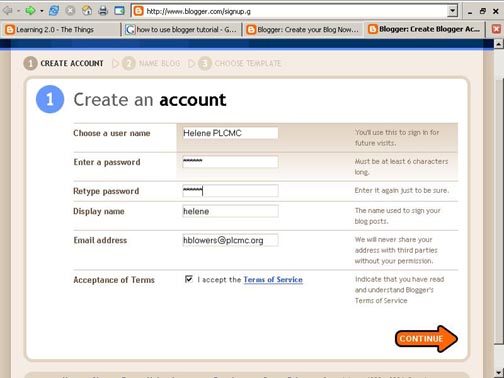
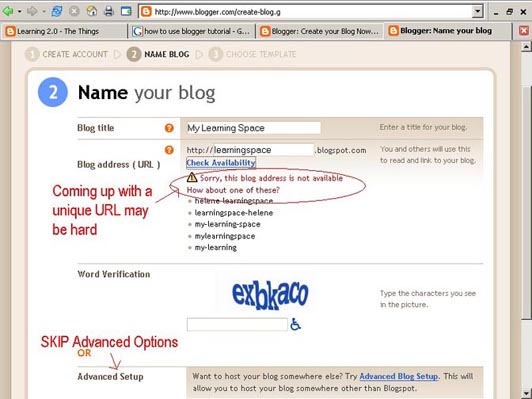
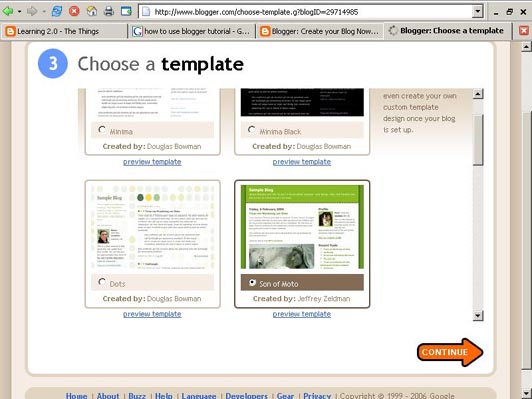
    Creating a blog using
    Blogger takes just three steps:
    1. Create an account (view
    screenshot)
    2. Name your blog (view
    screenshot)
    3. Select your template. (view
    screenshot)

    Discovery Exercises:


  • Find some interesting blogs at Google Blogs. Read a few blogs to get a feel for the structure, how they work, and what kinds of topics people blog about.
  • Homework Activity:

    1. Set up your own blog. There are many different blogging service providers such as Blogger, Wordpress, Edublogs, Live Journal, and TypePad. For this class we will use Blogger for a few reasons: it is easy to learn and use, you probably already have a Google account you set up to access the Media Clerk's Forum blog, and we will all be on the same provider.

    2. Write your first two posts. One for your refection on Thing #1 -- Learning and Web 2.0, and then your reflection on Thing #2 -- Blogging. Each new entry should include the "Thing" number about which you are writing. Include your thoughts on how blogging could be useful for you personally. Would it be valuable in the library? How?

    3. Register your blog with me by sending the URL of your new blog (your Internet address) to me by clicking here.

    4. Read all your classmate's blogs. As they are registered, the links will appear on the sidebar under Participant Blogroll. Make some comments on their posts.
    5. Feeling adventurous? Add your avatar to your blog. Use a photo of yourself. You can resize it here. Be sure to use a closeup of your face as the avatar icons are very small. Make an avatar at the Yahoo Avatar site. You can set up a free account and use the avatar maker. There are lots of other avatar sites out there -- explore!


    Some Blogging Suggestions:

    1. Name each of your post with the “Thing” number about which you are discussing. For instance: Your first Post might be: Thing #1 – My Thoughts on Web 2.0.
    2. Comments are the “life blood” of bloggers. Take some time to read other blogs and always try to leave a meaningful comment. “I agree” or “Right on!” are generally not meaningful comments.
    3. Your blog posts should be at least 100-150 words each week - we'd like to have a conversation and the more you post, the better the conversation will be.
    4. Always “tag” your posts. We will talk more about this in a couple of weeks. Tagging is a label you add to organize and index your posts – readers can find all your posts dealing with any topic. It is also a great tool for you to easily track your post topics. Hey! We're librarians -- we love to catalog everything!
    5. We will learn to add all kinds of items to your blog: photos, videos, widgets, feeds, and all sorts of useful tools for your readers. Stay tuned…
    6. Don’t be afraid to explore, experiment, and be creative. Have fun!

    If you want MORE:

    Read some of the popular library blogs:

    What are students doing in the blogosphere? Check out these student blogs:

    Create a blog post with your thoughts about these blogs.